Showing posts with label Wordpress Tips. Show all posts

Install Facebook LIKE BOX to Your Blogger & Wordpress Blogs

Everyone brand / product / service / website essentially have a Facebook Page these days. Placing a Facebook LIKE BOX at a key spot on your Blog or site is the nice way to create access for visitors to stay tuned with your offerings.

Here's how to add Facebook LIKE BOX on your blog. (I have mentioned for both Wordpress & Blogger below, Take your Pick)
Remember, It's only possible on Self hosted Wordpress blogs,  blogger and websites. Don't waste time looking to place it on Wordpress.com free hosting. Whether or not you have a unique URL.. It's essential that the WP blog is self hosted to place the like box. You can't install a facebook like box in wordpress.com

Common Steps for Both - 
Go to http://developers.facebook.com/plugins. There is an alternate way to do it by going through Edit page of Facebook, but I find this much easier.

Select "Like Box" from the menu on right column (Please Note there is a difference between LIKE BOX and LIKE BUTTON, so don't confuse yourself)

Now you need to enter your page details and preferences on the form.

1. Facebook Page ID - These are the unique numbers assigned to your page. To find your Page ID - Go to your facebook page, Click on your profile picture and in the Navigation Toolbar (Where you write the URL's) look for a long number code. Copy and Paste it on the Form


2. Set your preferences in terms of size, no. of fans to show, not show etc and hit GET CODE.


Now Copy the Iframes or Xfbml Code (as preferable on your site). For Blogger choose the Iframes Code.


Install Facebook Like Box on Blogger
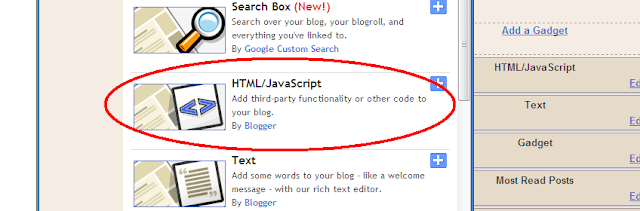
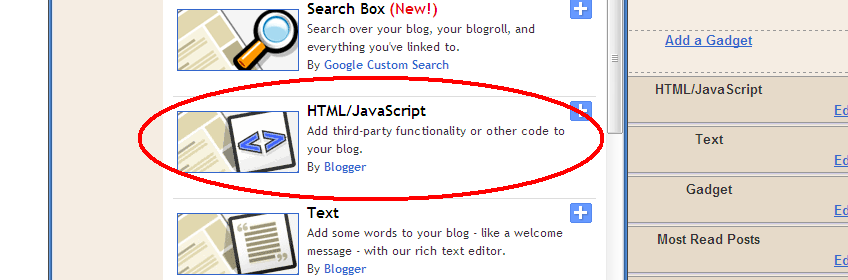
Paste the iframe code on your HTML/Java box in blogger through page elements.


Install Facebook Like Box to Your Wordpress (Selfhosted) blog
1.Go to Widgets under Appearance
2. Find TEXT widget and Drag it to your side bar
3. Paste the Iframe Code to it, and Save.



I hope that's helpful, Let me know if any problems.


[..read more]


Add Social Bookmarks to Wordpress.com

Get Sharing & Bookmarking Links on Your Wordpress Blog NOW!
Wordpress is on a roll! Every day a new announcement. My last How to get Tweet button on Wordpress post now becomes obsolete with in 2 days, thanks to WP!

Finally they have introduced the much awaited, asked and prayed for -  Bookmarking links - all over your wordpress.com blog! I am totally thrilled as 6 of my blogs are hosted there :)
Moving on -
To get these SHARING links on your blog - Go to Settings > Sharing in your left panel of the WP dashboard.

Now Just drag the links you want on your posts. You can select whether you want it on just the posts or index pages as well. And your Sharing links are READY!


You can also add another Sharing site then those pre-fed on WP. 

While I am writing this post a new announcement has been made about 'Instant communication of posts and comments with Jabber' - I wonder whats with the aggressive development spree, not that am complaining... Just love it :)


[..read more]


Wordpress Makes Tweeting Damn Easy

If you have been looking for an answer on google to "How can I add a Tweet button to Wordpress Posts" - Here it is!
Before introducing the Zemanta -Wordpress Partnership, Wordpress had announced its integration of TWEET button (as Facebook LIKE). This does not appear on the entire blog but on individual posts, which is good enough! Much to the reprise of Wordpress.com users.

Again, Very easy to activate.
1. Go to your WP Dashboard > Extras
2. Check the 'Show a Twitter Tweet button on my Posts'

3. Start Tweeting!


Awesome move by Wordpress, Whats next in line... Facebook Like? ;)

To stay updated about the latest updates on the blog, Subscribe to the Blog Email updates (Here) or Connect with me on Twitter
[..read more]


Wordpress Partners with Zemanta - Add Relevant Photos & links with a click!

Wordpress.com is making some giant tweaks in these days making itself much more easier and user friendly. Latest addition is it's Integration with Zemanta
Its a really cool feature where when you add a post to your blog (in visual mode, not html) you get relevant Photos and other articles of similar nature which can be linked directly in your post.

"Once you’ve activated Zemanta, you’ll see several new widgets on your edit screen that let you quickly add recommended links, photos, tags, and articles. With just a few clicks your post goes from simple to snazzy. "

How to Activate Zemanta?

First - Go to your PERSONAL SETTINGS in Wordpress dashboard.

On Personal Setting Page, Scroll down till you see 'Additional Post Content'


Check it, Scroll down further and click SAVE CHANGES.  Then move to Add New Post.


Find your Zemanta Widget in the Right panel. Always remember that Zemanta will show recommendations only in Visual Mode, not HTML. After entering few initial words, hit 'Update' on the Zemanta Widget and you'll start seeing a host of relevant Photos and articles that you can easily drag and link in your own post for more references and credibility.

Bottom Line: You save plenty of time from not googling the right pictures & content to back up your post. It's right there!


[..read more]